
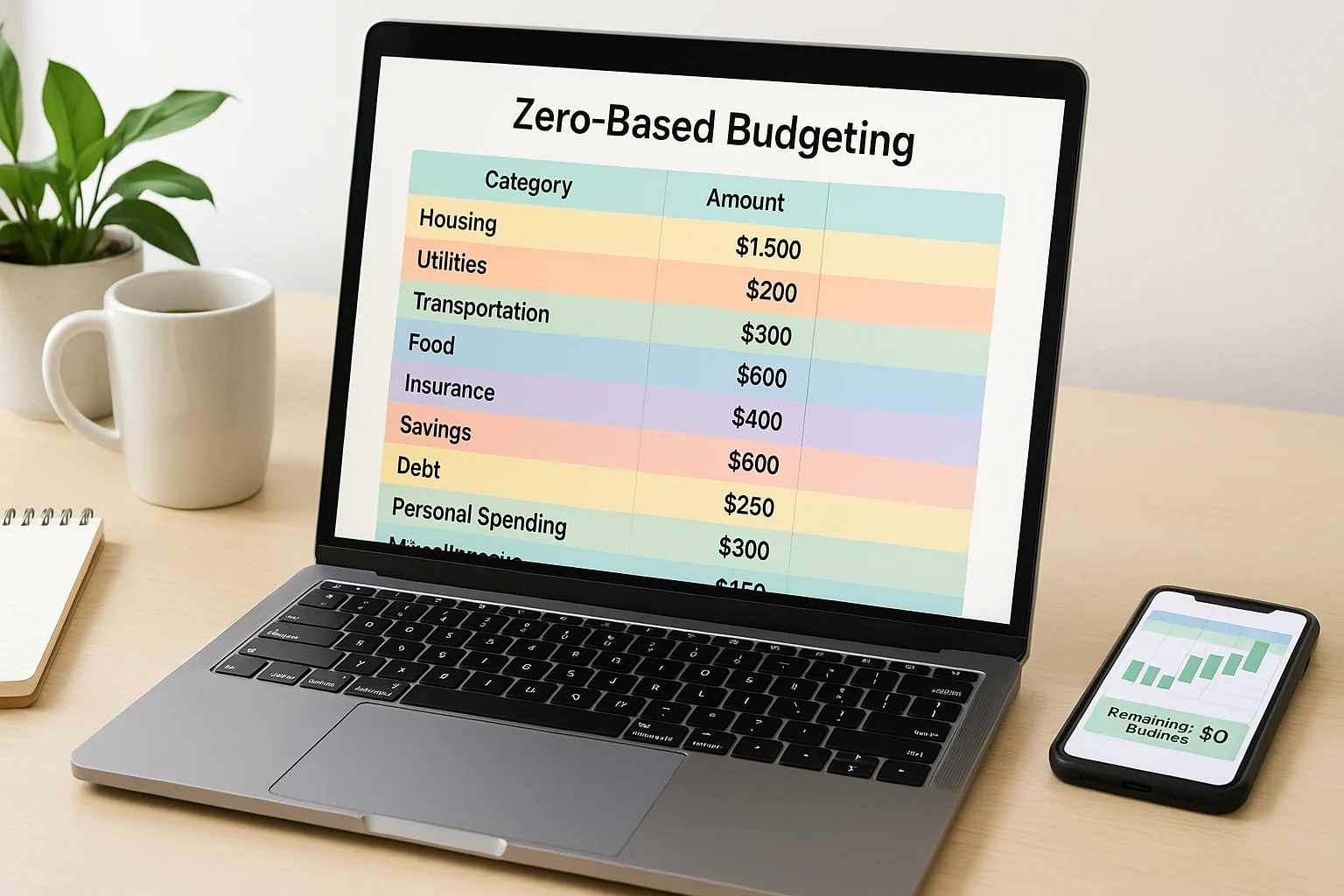
If you want a free zero budget spreadsheet you can use right away, jump to the Excel download or use the interactive tool below to sketch this month’s plan first. The same .xlsx file can also be imported into Google Sheets.
Zero-based budgeting gives every expected dollar a job across spending, savings, and debt before the month begins. This guide shows the method, a seven-step setup, and a simple monthly routine; for the broader saving system around it, see how to live frugally and save money.
This post contains affiliate links. If you buy through our links, we may earn a commission at no extra cost to you. As an Amazon Associate, I earn from qualifying purchases. Learn more.
Table of Contents
- Interactive Zero-Based Budget Tool
- Free Zero Budget Spreadsheet Template
- What is Zero-Based Budgeting?
- When Zero-Based Budgeting Is Worth the Extra Detail
- Setting Up Your Zero-Based Budget
- Monthly Flow for Your Zero Budget
- FAQs About Zero Budget Spreadsheets
- Use Your Zero Budget Spreadsheet for One Real Month
Interactive Zero-Based Budget Tool
Enter your expected monthly income, then add planned spending, savings, and debt. The summary shows what is still unassigned so you can work toward a true zero-based plan.
Amounts display in dollars. Calculations happen in your browser; this tool does not submit your entries. Planning aid only—not financial advice.
1. Your monthly income
Enter all income you expect this month.
2. Add planned categories
Budget summary
Enter monthly income, then add your planned spending, savings, and debt categories.
Free Zero Budget Spreadsheet Template
Building a budget from scratch can be tedious, so this free Excel template gives you a starting structure you can also import into Google Sheets. If you are choosing between a generic monthly budget spreadsheet and a zero-based budget template, the difference is the final zero check: every expected dollar is assigned to spending, savings, or debt before the month begins. It includes:
- Ready-made categories for income, expenses, savings, and debt.
- A structure for totaling planned amounts and checking the remaining balance.
- Customizable rows to match your own categories.
- Spaces to compare what you planned with what you actually spent.
Download the Excel file:
Download Excel Budget Template (.xlsx)Setup: Excel — open the downloaded file; if it opens in Protected View, choose Enable Editing only if you trust the file. Google Sheets — create a new or open an existing spreadsheet, then choose File → Import and select the downloaded Excel template.
On mobile: save the .xlsx file first, then open it in Excel or Google Sheets.
What is Zero-Based Budgeting?
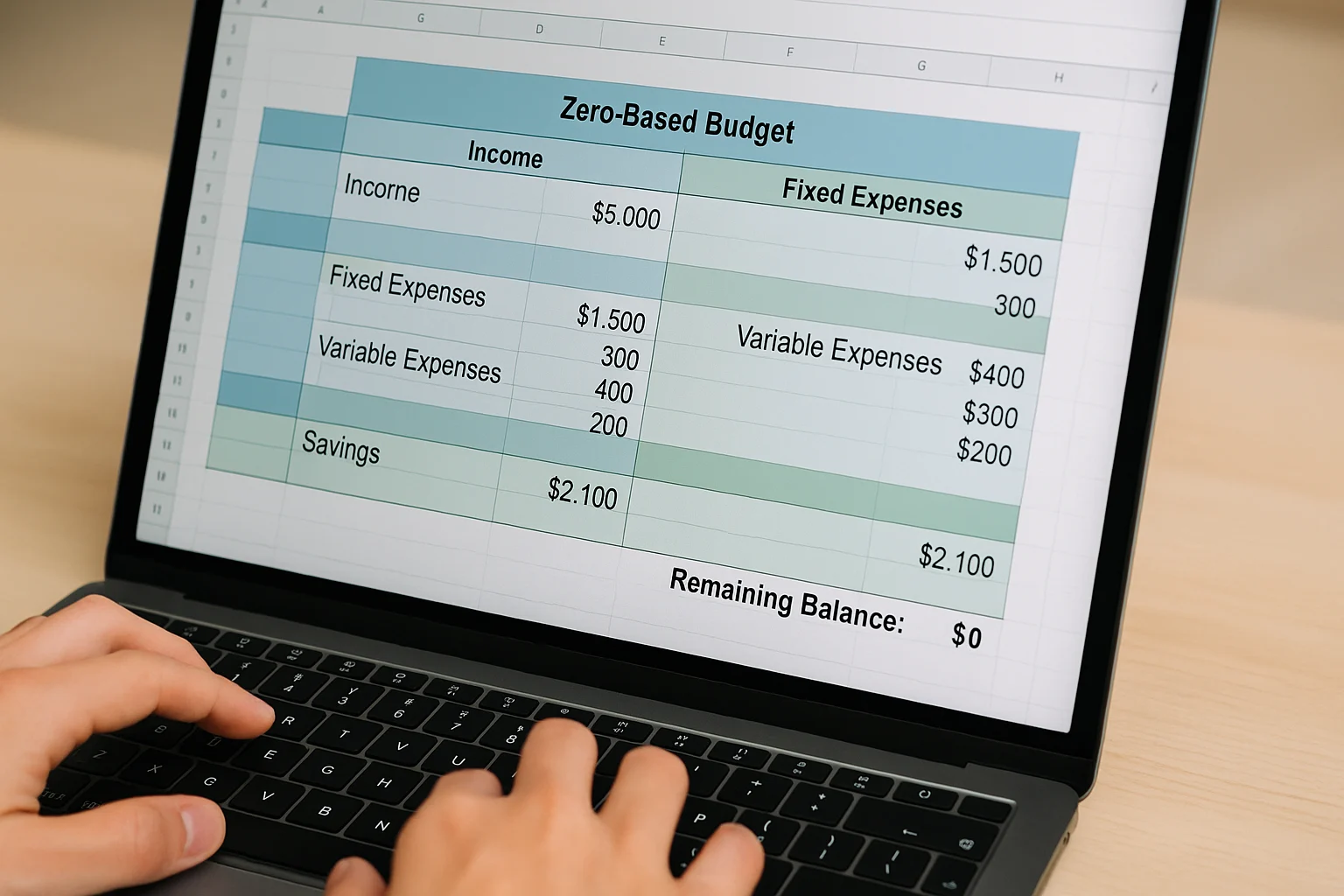
Simply put, zero-based budgeting (ZBB) means assigning all expected income before the month begins, so income minus planned spending, savings, and debt payments equals zero. Zero does not mean spending everything; savings and extra debt payments are part of the plan. If you prefer app-based tracking, compare our best budgeting tools.
The practical benefit is visibility: you decide in advance how much can go to bills, groceries, fun, savings, and debt, then adjust when real spending differs from the plan. The Consumer Financial Protection Bureau’s budgeting guide likewise recommends starting with a realistic picture of income and spending and updating the budget when circumstances change.
When Zero-Based Budgeting Is Worth the Extra Detail
Zero-based budgeting asks for more category-by-category planning than a broad percentage rule, so the extra detail should earn its keep. It is most useful when you want to:
- See the trade-offs before you spend: if one category rises, you can decide which other category or goal should change.
- Protect priorities on purpose: savings and extra debt payments can be assigned alongside bills instead of waiting for whatever happens to be left.
- Catch drift early: comparing planned and actual amounts makes recurring overspending or unused categories easier to spot.
- Adapt without starting over: when income, bills, or priorities change, rebalance the categories and keep the plan current.
If that level of detail becomes more work than the decisions it improves, a simpler monthly budget may be the better system.
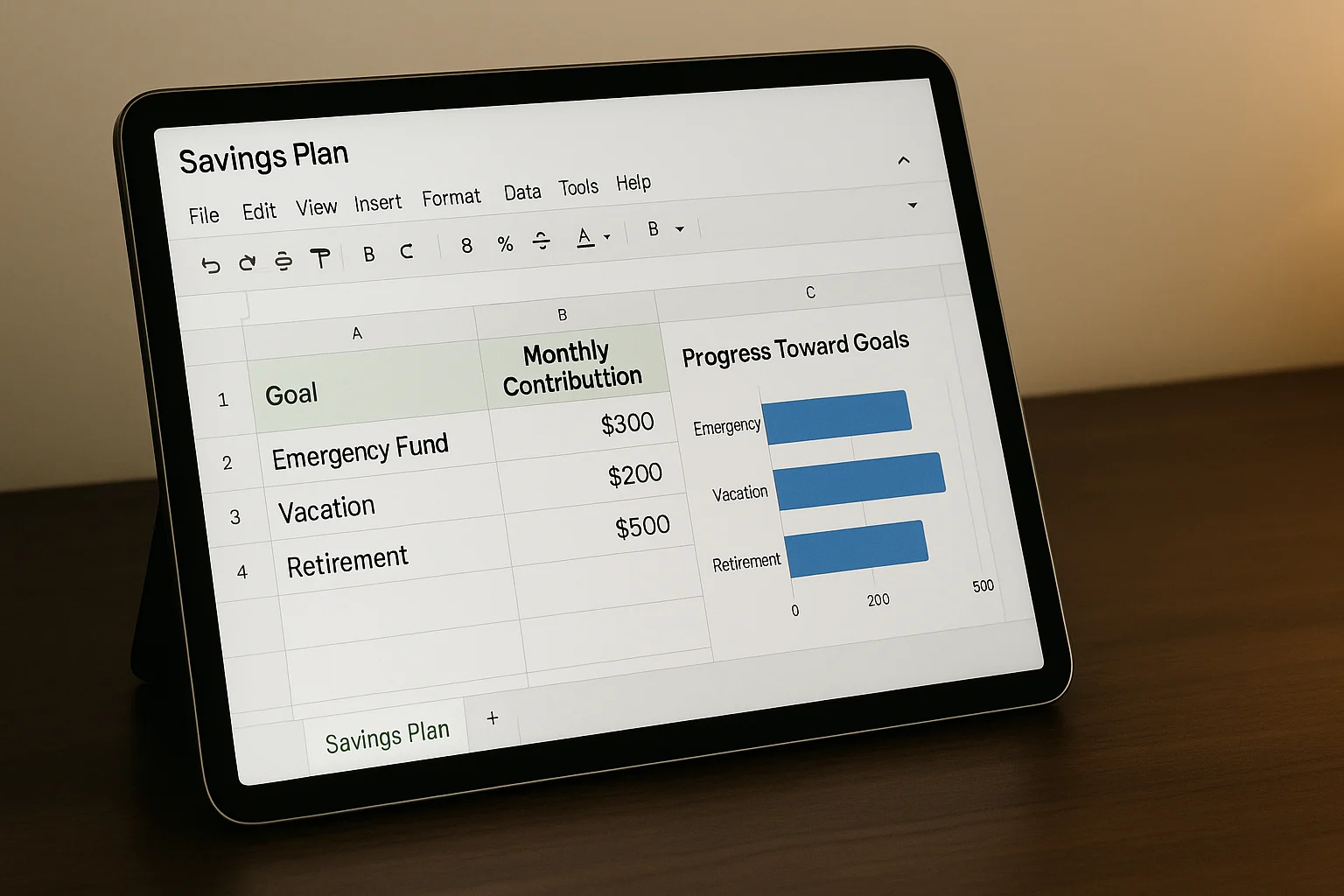
If you’re balancing the monthly budget alongside debts and savings goals, a broader snapshot can help you see those pieces together.
See Income, Spending, Debts, and Goals Together
Confirm to get the workbook and frugal money tips. Unsubscribe anytime.
Something went wrong. Please check your email address and try again.
Setting Up Your Zero-Based Budget
Pull last month’s statements, then choose realistic starting amounts for groceries, gas, and other flexible spending. For your first month, keep categories broad enough that you can maintain them; split a category later only when the extra detail helps you make a decision. If you’re budgeting with a partner, agree on two or three priorities before you begin so the zero-based plan reflects the same goals.
- Income: Jot down all your monthly sources (paychecks, side hustles).
- Fixed Expenses: List regular bills (rent, loans, subscriptions).
- Variable Expenses: Note costs that change (groceries, gas, fun).
- Savings Goals: Include emergency fund, vacation, or retirement.
- Debt Repayment: Add extra payments beyond minimums.
Build your budgeting spreadsheet from the ground up in seven steps:
Step 1: Set Up the Layout
Create sections for Income, Expenses (Fixed & Variable), Savings & Debt, and Summary.
Step 2: Input Income
List all your expected income:
| Source | Expected Amount | Actual Amount |
|---|---|---|
| Paycheck 1 | $2,000 | |
| Paycheck 2 | $2,000 | |
| Side Gig | $300 | |
| Total Income | $4,300 | — |
Tip: If your three expected-income amounts are in cells B2:B4, =SUM(B2:B4) adds them. Adjust the range to match your sheet.
Step 3: List Fixed Expenses
Include your regular bills:
| Category | Expected Amount | Actual Amount |
|---|---|---|
| Rent/Mortgage | $1,500 | |
| Car Payment | $350 | |
| Insurance | $150 | |
| Phone Bill | $70 | |
| Internet | $60 | |
| Subscriptions | $40 |
Step 4: List Variable Expenses
Estimate costs that vary:
| Category | Expected Amount | Actual Amount |
|---|---|---|
| Groceries | $500 | |
| Dining Out | $200 | |
| Gas/Transit | $150 | |
| Utilities | $100 | |
| Personal Care | $50 | |
| Entertainment | $100 | |
| Clothing | $50 | |
| Miscellaneous | $50 |
Step 5: Plan Savings & Debt
Focus on your future goals. Use our debt payoff tracker to map extra payments and celebrate progress.
| Category | Expected Amount | Actual Amount |
|---|---|---|
| Emergency Fund | $200 | |
| Vacation Fund | $100 | |
| Credit Card Debt | $100 | |
| Retirement Savings | $100 |
Step 6: Create a Zero Balance Check
Now check the math. In this example, planned expenses total $3,370, planned savings total $400, and debt repayment is $100. That allocates $3,870 of the $4,300 income, so $430 is still unassigned. Add that $430 to a category or goal until the remaining balance reaches $0.
| Item | Amount |
|---|---|
| Total Income | $4,300 |
| Total Expenses | $3,370 |
| Total Savings | $400 |
| Total Debt Repayment | $100 |
| Total Allocated | $3,870 |
| Remaining Balance | $430 |
In Excel, use SUM to total the cells that contain planned expenses, savings, and debt, then subtract Total Allocated from Total Income. Exact cell references depend on your layout, so test the formulas with sample numbers before relying on the sheet.
- If the remaining balance is positive: assign the unused amount to a real spending category, savings goal, or extra debt payment.
- If the remaining balance is negative: reduce planned categories or correct income only when the income figure itself is wrong; do not raise expected income just to force the sheet to zero.
- If expected income changes: update the income figure and rebalance the plan instead of treating the first draft as fixed.
Step 7: Track Actual Spending
Do a quick weekly check-in with your budget. Enter actual costs in the “Actual Amount” columns and compare them with the plan. That gives you real numbers to use when you adjust next month’s targets. For long-term consistency, build budgeting habits that stick.
Frugal doesn’t mean figuring out every hard call alone. When your own income, debt, or competing priorities make the numbers genuinely conflict, a second opinion is the frugal move, not the expensive one.
Get a Second Opinion Before You Guess
Zero-based budgeting surfaces trade-offs a template cannot settle for you. A finance professional can weigh them against your actual numbers, so the category you cut is the right one — not just the easiest one to change.
FAQs About Zero Budget Spreadsheets
Use Your Zero Budget Spreadsheet for One Real Month
Start with one real month rather than trying to design a perfect system. Use the interactive tool for a quick draft, download the Excel budget template, replace the sample amounts with your own, and update the “Actual Amount” column during the month.
At month-end, keep the categories and checks that helped you make decisions and simplify anything that became busywork. A useful budget is one you can understand, revisit, and change when your numbers change.
This content is for informational purposes only and not financial advice. Consult a qualified professional before making financial decisions.

